

Remove Watermark From Video Online

Remove a watermark from a video you own or have permission to edit. Upload a short clip, see the credit cost before you start, then review the picture and sound before downloading a separate copy.

Upload your video

Choose the clearest original clip so movement, faces, and background details are easier to keep consistent.

Drag and drop a video here

MP4, MOV, or WebM · Up to 200 MB and 10 minutes

MP4, MOV, WebM
accepted video files
Up to 10 minutes
per video
1 credit
for each 5 seconds
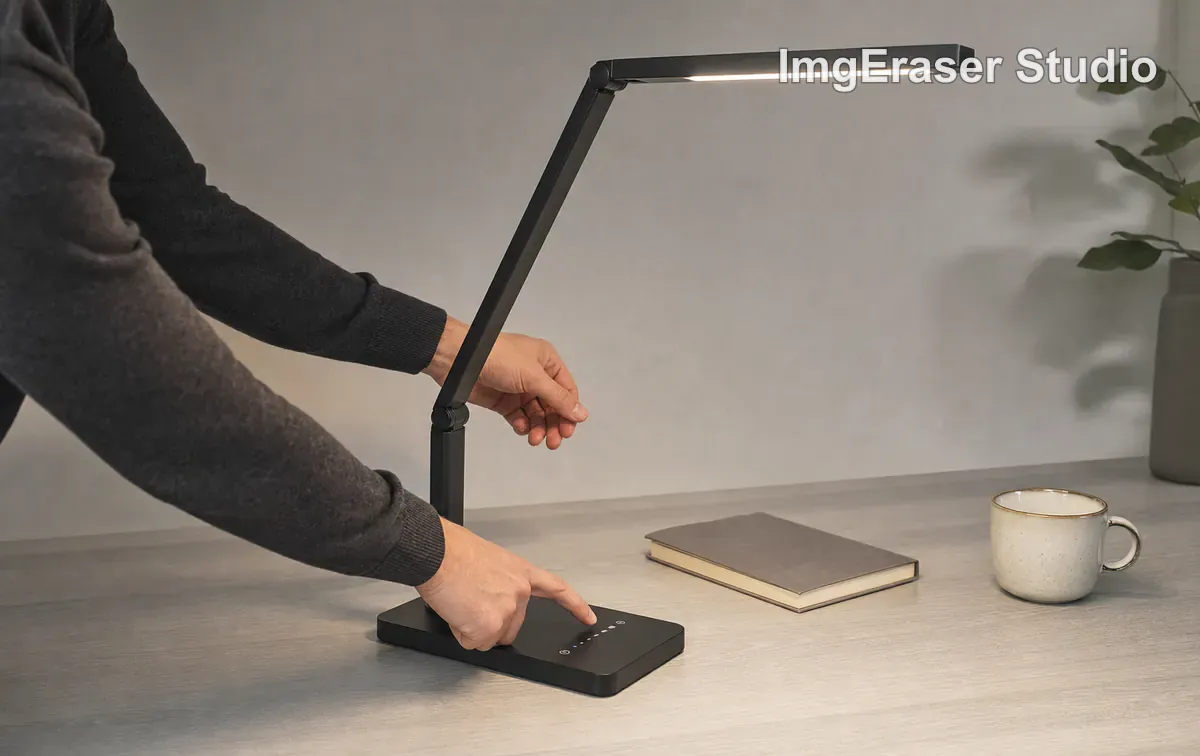
Product demonstration video frame with an ImgEraser Studio mark in the upper-right corner
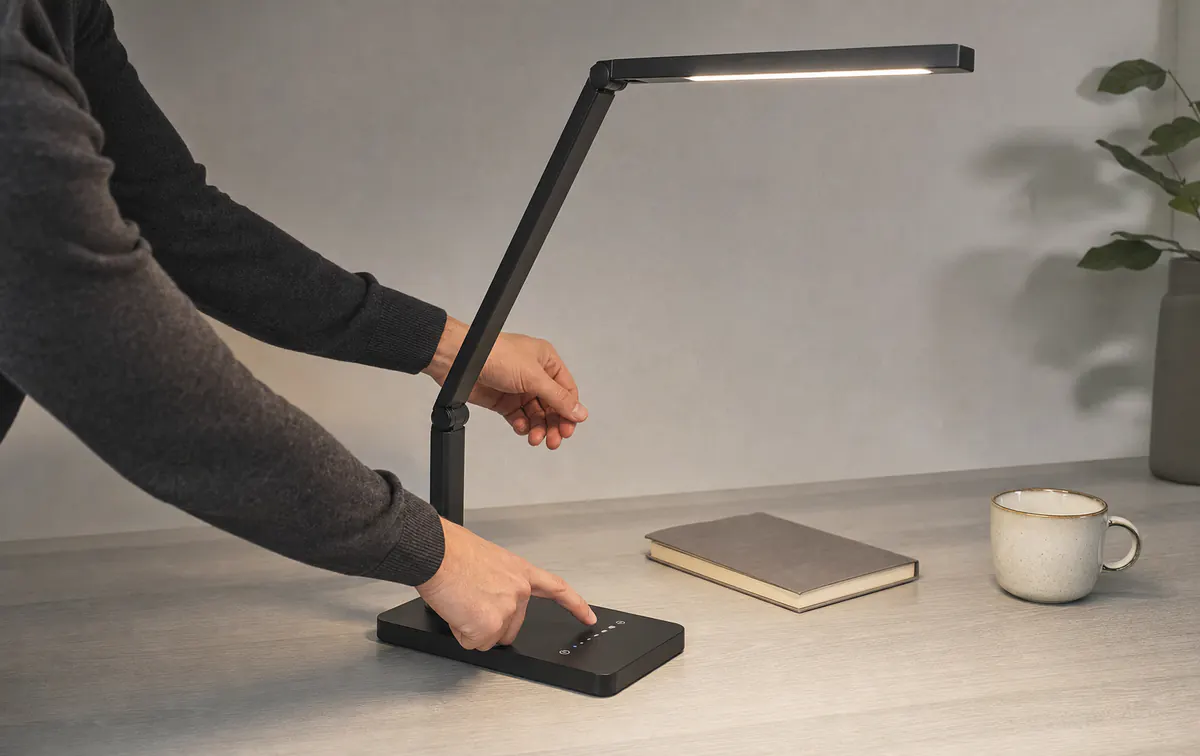
The same clean product demonstration source frame without the example mark

See how a corner mark changes a product video

Drag the divider to compare the same product demonstration frame with and without the ImgEraser mark. Check the lamp edges, hand, controls, shadows, and wall texture around the upper-right corner.

Remove common marks without learning a video editor

The tool follows visible marks from frame to frame and prepares a new video. It works best when the surrounding picture remains visible and the mark does not cover a large, unique detail.

  • 01

    Corner watermarks

    Clean a small channel mark, review stamp, or your own branding from a corner while keeping the full frame.

  • 02

    Moving logos

    Follow a logo that changes position during a short clip without selecting it again on every frame.

  • 03

    Captions and text

    Remove an unwanted caption, label, date, or text strip when enough background is visible around the letters.

Three common reasons people clean a video mark

Each example uses a different video format, watermark position, and background. Use them to understand what to check in your own authorized clip.

Portrait creator video frame with an ImgEraser mark in the lower-right corner
The same clean portrait creator source frame without the example mark

Clean an export mark from your own social video

A lower-corner mark can sit across a counter, ingredients, or moving hands. Start with your original creator file and keep the full portrait frame instead of cropping away useful content.

Watermark position
Lower-right fixed mark
What to review
Face, hands, glass edges, fruit, and changing kitchen detail

Client review video frame with a large transparent ImgEraser review mark across the center
The same clean client review source frame without the example mark

Prepare your approved final video for delivery

Creative teams often place a large transparent review label across their own draft. Remove it only after approval, then inspect every detail the mark crossed before sending the final copy.

Watermark position
Large transparent center mark
What to review
Clothing, handbag edges, wall texture, window light, and floor lines
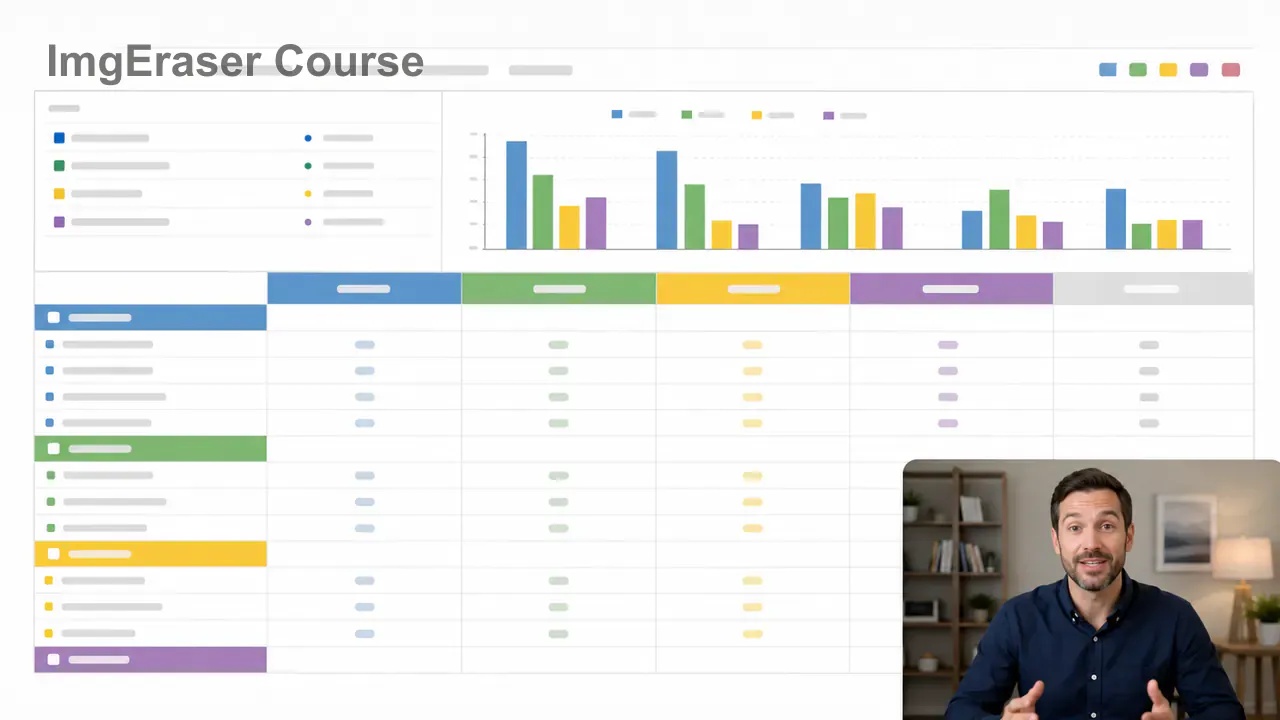
Course screen recording frame with an ImgEraser Course mark in the upper-left corner
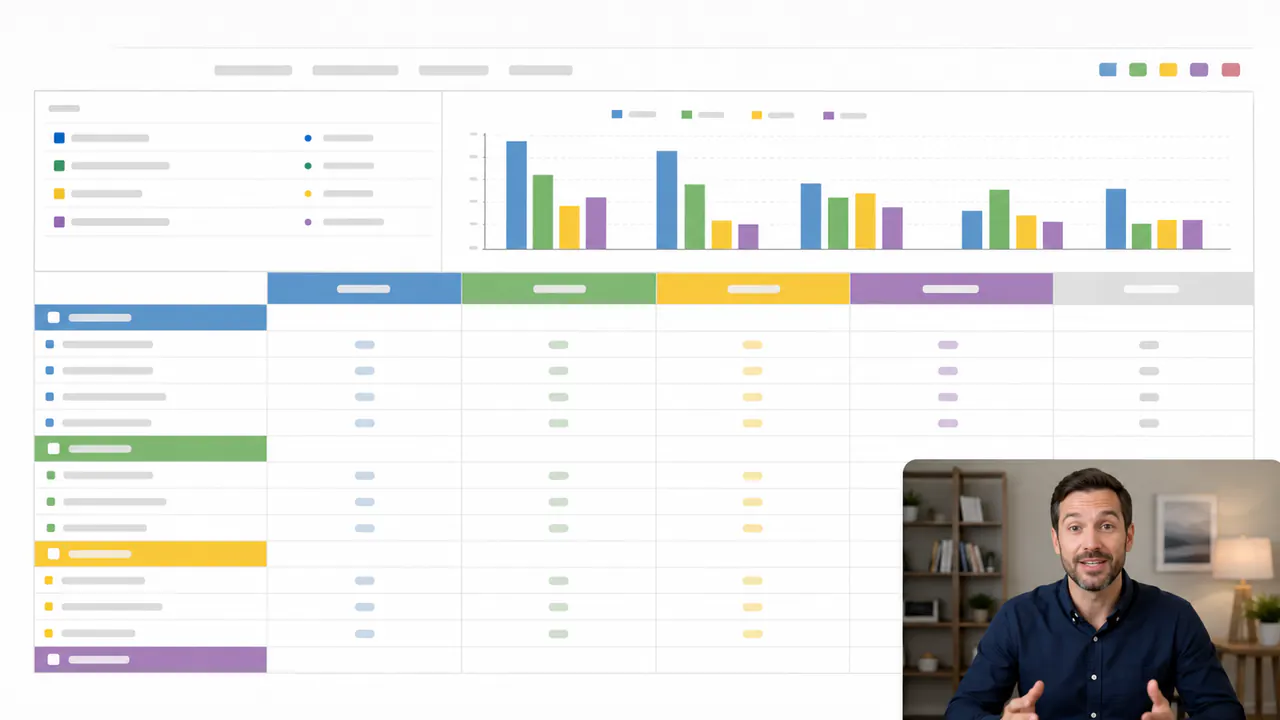
The same clean course recording source frame without the example mark

Update a lesson for a new course layout

A course label may cover chart lines, table cells, or a screen-recording header. Use a recording you created or may edit, and check the cleaned interface at normal size and close up.

Watermark position
Upper-left course mark
What to review
Chart bars, table lines, colored cells, and the instructor window

Upload, review the cost, and download

  1. 01

    Choose an authorized video

    Upload an MP4, MOV, or WebM clip you own or are allowed to change. Clips can be up to 200 MB and 10 minutes.

  2. 02

    Confirm the length and cost

    The page reads the video length and shows the exact number of credits before processing begins. One credit covers each 5 seconds, rounded up.

  3. 03

    Start the cleanup

    Confirm that you may edit the clip, then start. You can keep the page open or return on the same device while the video is being prepared.

  4. 04

    Play and download the result

    Check the picture and sound, then watch movement around the removed mark. Download the result as a separate file.

What usually gives a cleaner result

A watermark hides pixels that are no longer visible. The result is rebuilt from the surrounding frames, so the position of the mark and the detail beneath it matter.

Mark in the videoBest starting pointWhat to review
Small corner markUse the highest-quality original with the full frame.Edges, sky, walls, and repeated texture.
Moving logoUse a steady clip with clear frames around the logo.Fast movement and changes in position.
Text or captionChoose a clip where letters do not cover a face or product label.Leftover outlines, shadows, and straight lines.
Large transparent overlayTry a short sample before spending credits on a long video.Brightness shifts and soft patches across the frame.

Check the moments that are easiest to miss

  • Play the beginning, middle, and end instead of checking only the first frame.
  • Listen once with sound on to confirm the audio still plays as expected.
  • Pause where the camera moves quickly or another object crosses the old mark.
  • Keep the original file and save the cleaned result as a separate copy.

Questions about removing watermarks from video

Clean a watermark from your video

Start with a short clip you are allowed to edit, review the credit cost, and check the finished picture and sound before downloading.

Upload a video